
Generating and modifying short videos
InvokeAI generates short MP4 clips from a text prompt, one or two images, an existing video, a soundtrack — or combinations of those — using three local model families:
- Wan 2.2 — the Alibaba Wan-AI family: three transformer variants covering text-to-video, image-to-video, first-to-last-frame interpolation, and video extension, with a 4-step Lightning fast path.
- MiniMax H3 — two task transformers, FL2VA (first/last-frame-to-video-plus-audio) and Ref2VA (reference-to-video-plus-audio), that between them cover every conditioning mode and generate a synchronized stereo soundtrack, with a Turbo fast path. A hybrid runs the two together.
- LTX-2 — Lightricks’ 22B dual-stream transformer, which generates picture and stereo soundtrack together. It covers text-to-video, first frame, last frame, first-to-last interpolation and video extension, and — because it models both streams — can also generate a picture for an existing soundtrack (audio-to-video) or a soundtrack for an existing picture (video-to-audio). It ships in a Dev build you steer with guidance and a Distilled build that renders in eight fixed steps, and Dev has an optional eight-step Distilled LoRA fast path.
The easiest way to use any of them is the Video panel described on this page — no node graph required. The bundled video workflows expose the same pipelines in the workflow editor for graph-level control.
The Video panel
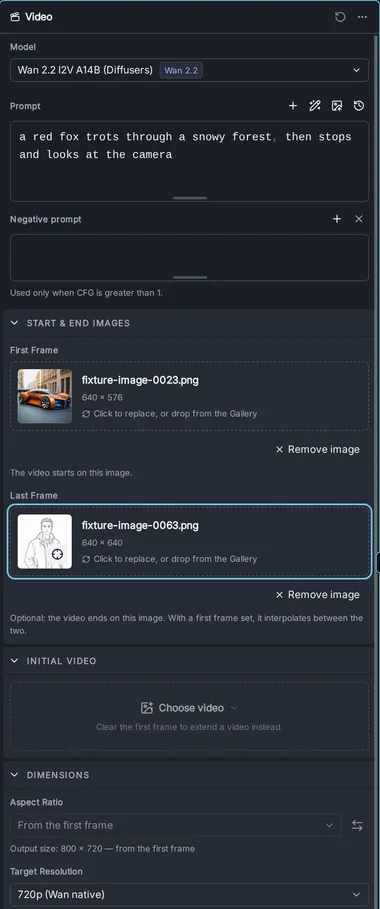
Section titled “The Video panel”Open the Video entry in the editor’s left rail (next to Generate and Upscale). The panel is a complete video pipeline: type a prompt, pick a model, press Invoke, and the finished MP4 appears in the gallery.
Quick start
Section titled “Quick start”-
Install a video model. Open the Model Manager and install a starter bundle: Wan 2.2 Text-to-Video, Wan 2.2 Image-to-Video, MiniMax H3, or LTX-2.5. See the models below for what each contains and what fits your hardware.
-
Open the Video panel and pick your model in the Model section. The panel reshapes itself around the selection — sections and fields appear, disappear, and re-range to match what the model can actually do.
-
Type a prompt describing the scene and, importantly, the motion you want across the clip.
-
Optionally add conditioning media — a first frame, a last frame, an initial video to extend, or, on LTX-2, a conditioning clip whose soundtrack or picture the generation completes (see below).
-
Press Invoke. The MP4 lands in the gallery and plays in the viewer. On MiniMax H3 and LTX-2 it arrives with a generated audio track.
The panel adapts to the model
Section titled “The panel adapts to the model”There is no mode switch. The panel infers what to generate from which inputs you have filled in, and each model family supports a different set of combinations:
| Inputs you set | What runs | Wan T2V‑A14B | Wan I2V‑A14B | Wan TI2V‑5B | MiniMax H3 | LTX-2 |
|---|---|---|---|---|---|---|
| Prompt only | Text to video | ✓ | — | ✓ | ✓ | ✓ |
| First Frame | Video starts on your image | — | ✓ | ✓ | ✓ | ✓ |
| Last Frame only | Video ends on your image | — | — | — | ✓ | ✓ |
| First + Last Frame | Interpolates between the two | — | ✓ | — | ✓ | ✓ |
| Initial Video | Extends the clip | — | ✓ | ✓ | ✓ | ✓ |
| Initial Video + Last Frame | Extends toward a destination image | — | ✓ | — | ✓ | ✓ |
| Conditioning Clip, its soundtrack | Generates a picture for the audio (audio-to-video) | — | — | — | — | ✓ |
| Conditioning Clip, its picture | Generates a soundtrack for the video (video-to-audio) | — | — | — | — | ✓ |
MiniMax H3’s Ref2VA transformer has a mode of its own — reference-conditioned generation — covered with the model.
If you pick a model that can’t run the current combination, the Invoke button tells you exactly why instead of failing mid-run.
Prompt
Section titled “Prompt”The prompt toolbar carries most of the helpers from the image Generate panel — prompt triggers, prompt expansion, image-to-prompt, and history (prompt templates are only available in Generate). On LTX-2, Expand Prompt starts from the enhancer LTX-2.5 was released with and, when a first frame is set, describes the video from that frame — see prompt enhancement for LTX-2.5. The negative prompt behaves per family:
- Wan — used only when CFG is greater than 1 (the field says so). With the Lightning fast path on (CFG 1), it is ignored by the graph.
- MiniMax H3 — hidden entirely. H3 is guidance-distilled and has no CFG, so a negative prompt has nothing to act on.
- LTX-2 — offered on the Dev build, where it is pre-filled with the release’s own default list of artifact terms, and hidden on the Distilled build, which runs no guidance. On Dev it is also hidden while the Distilled fast path is on, since that run uses no guidance; turn the toggle off to get it back. With CFG and Audio CFG both at 1 it is dropped from the graph, along with the 12B prompt encode it would have cost.
Start & End Images
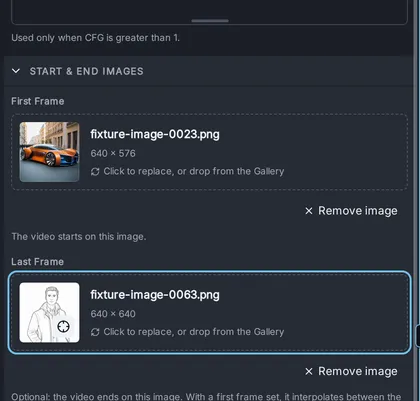
Section titled “Start & End Images”Two drop targets: First Frame and Last Frame. Drag an image from the gallery (thumbnail or the preview’s frame), or upload one.
- A first frame anchors the video’s opening image (image-to-video).
- A last frame anchors where it ends. Combined with a first frame, the model interpolates between the two. On MiniMax H3 and LTX-2 a last frame also works alone — the video builds toward your image.
- Setting a first frame disables the Initial Video section, and vice-versa: a clip can start from a still or continue a video, not both. The disabled section says which input to clear.
Initial Video
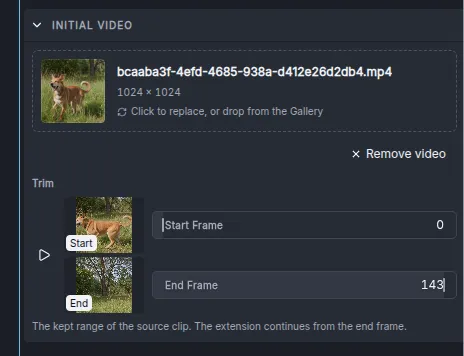
Section titled “Initial Video”Drop or upload an existing video to extend it. The section shows the clip with a live preview, plus:
- Start Frame / End Frame sliders to trim the kept range — small thumbnails show the exact frames at both bounds while you drag.
- The new segment continues from the trimmed clip’s end frame and is joined on with a smooth cross-fade.
- Add a Last Frame image alongside the initial video to steer where the continuation lands (not available on TI2V‑5B).
- On Wan and LTX-2, the extension inherits the source clip’s frame rate and the FPS field locks accordingly. MiniMax H3 always generates at its fixed 24 fps.
- On LTX-2 a Context Frames control appears under the clip: how many of the source’s closing frames — picture and sound — the continuation is given, and how long the cross-fade is. Its help text shows how much new material the run will add. See extending with LTX-2.
Run extend repeatedly — each output can be the next run’s initial video — to grow a clip well past a single generation’s length. See making longer videos.
Conditioning Clip (LTX-2 only)
Section titled “Conditioning Clip (LTX-2 only)”LTX-2 offers the ability to add a soundtrack to a video, or add a video to a soundtrack. Please see LTX-2 for more details.
Dimensions
Section titled “Dimensions”- Aspect Ratio presets (21:9 through 9:21) drive text-to-video output. As soon as conditioning media is set, its aspect ratio takes over and the preset locks — the readout names the source (“from the first frame”).
- Target Resolution picks the size tier within that ratio:
- Wan — 480p and 720p (native), 1080p (extrapolated beyond the training distribution; expect softer results).
- MiniMax H3 — 768 highres (native: short edge 768) and 768 lowres (fast preview: long edge 768).
- LTX-2 — 512p, 704p (default) and 768p in one pass; 1024p and 1536p are two-stage, and much slower. The panel derives exact pixel dimensions automatically, snapped to each model’s grid — you never do the multiple-of-16/32 math yourself.
- Frames sets clip length:
- Wan — any 4·n+1 count from 5 to 161; default 81 (5 seconds at the default 16 fps). The training distribution is 81; longer values degrade coherence.
- MiniMax H3 — a snapped slider over the model’s fixed grid (90 to 345 in steps of 17); default 124 (about 5 seconds at 24 fps).
- LTX-2 — any 8·n+1 count; the slider covers 9 to 241 and the field accepts up to 481. Default 121 (5 seconds at 24 fps). A conditioning clip sets it for you.
- FPS — editable on Wan (default 16) and LTX-2 (default 24, range 1–60), locked on both while extending (see above); fixed at 24 on MiniMax H3. On LTX-2 the frame rate also sets how much audio is generated, and a conditioning clip in the picture role supplies its own.
Fast rendering modes
Section titled “Fast rendering modes”Each of the models has a fast mode that significantly reduces the number of steps needed to generate a final video, at the cost of loss of diversity. We use the names that the model authors prefer, so fast mode is variously called “Lightning,” “Turbo,” and “Distilled.”
-
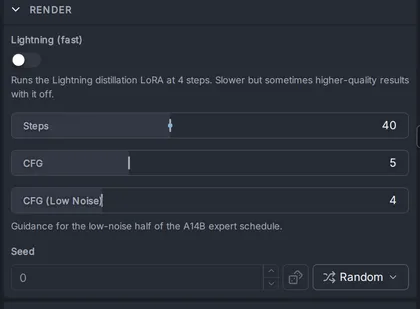
Wan 2.2 A Lightning (fast) toggle appears in the Render section of the Video Panel when any of the A14B models are chosen. Activating this toggle does several things. It loads two bundled “lightning” LoRAs (one each for the high and low noise render phases), it reduces the default steps from 40 to 4, and it sets CFG to 1. You may, if you wish, swap out the lightning LoRAs for other accelerated LoRAs.
-
MiniMax H3 A Turbo (fast) toggle appears in the Render section. Activating this loads a bundled “Turbo” LoRA and reduces the number of steps to 8. There are two different LoRAs: one for H3 FL2VA and one for H3 Ref2VA.
-
LTX-2 We bundle a distilled LTX-2.5 transformer model with the starter models. Select this model will reduce the step requirements to 8. Alternatively, you can select the Dev transformer and activate fast mode using a toggle labeled Distilled (fast) in the Render section of the panel. This will load an LTX-2 distilled LoRA and reduce steps to 8. The former is fast but less flexible. The latter produces higher quality videos and gives you the flexibility to adjust the distillation strength or fine-tune the model. Note that the distilled LoRA is not installed with the LTX-2 bundle, but can be found among Starter Models by searching for “LTX-2.5 Distilled LoRA.”
Concepts (LoRAs)
Section titled “Concepts (LoRAs)”Add your own style/subject LoRAs, just like the image panel — on all three families, including LTX-2. Compatibility is enforced per family — an A14B LoRA can’t run on TI2V‑5B (the tensor shapes differ), and the panel says so rather than silently dropping it.
Model Components
Section titled “Model Components”What appears here depends on the model:
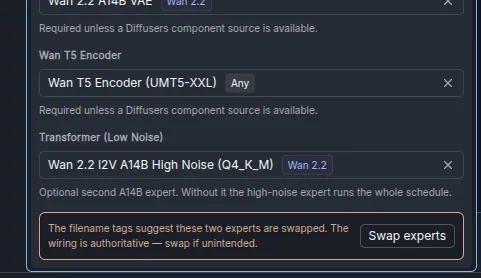
- Wan single-file (GGUF/checkpoint) mains need their supporting pieces: either a Component Source (any Diffusers Wan install, which supplies the text encoder and VAE) or a standalone VAE and Wan T5 Encoder. A14B mains also get a Transformer (Low Noise) slot for the second expert — without it, the high-noise expert runs the whole schedule.
- Wan Diffusers mains bundle everything; the section stays collapsed.
- LTX-2 transformer mains always need two components: Model components, an LTX-2 components install supplying the VAEs, vocoder, text connectors and latent upscaler, and a Gemma-4 encoder — no LTX-2 model carries its own text encoder.
- MiniMax H3 single-file transformer mains need Model components — a Diffusers H3 install that supplies the tokenizer, processor, and VAEs — plus a single-file Text encoder when that install carries no text-encoder weights (the starter bundle’s does not). A Ref2VA main also offers the optional Hybrid quality base (FL2VA) slot and, once a base is picked, a Ref2VA AdaLN from block slider — see the hybrid.
If a Wan A14B pairing looks mis-wired — for example a low-noise-tagged file in the main slot — the panel shows a non-blocking advisory beneath the slots with a one-click Swap experts action. The tags come from a filename heuristic and your explicit wiring always wins, so deliberate cross-wiring still runs (the backend logs the same warning at generation time).
Recalling parameters
Section titled “Recalling parameters”Video generations record their parameters as metadata. Select a video in the gallery and use Recall parameters (in the viewer’s header or the context menu) to load its prompt, model, dimensions, frames, LoRAs, and conditioning back into the Video panel — the same round-trip the image panel offers. Media that no longer exists is cleared rather than silently substituted. The MiniMax H3 hybrid is part of the record too: recalling a hybrid video restores its base and start block, and recalling a video made without the hybrid clears the slot. LTX-2 records carry their guidance scales, extend context length and conditioning clip with its role.
The record travels inside the MP4, the way an image’s does inside its PNG. Download a video, upload it to any Invoke install — yours or someone else’s — and Recall parameters works there too: models are matched by content hash when the other install’s model keys differ, and conditioning media that only existed in the original gallery is simply left empty. The Media Metadata reference documents the record’s fields and versioning.
Making longer videos
Section titled “Making longer videos”Every family is trained on short clips — Wan on 81 frames (~5 s), H3 on up to 345 (~14 s), LTX-2 on 121 (~5 s at 24 fps). Asking for more frames in one generation pushes the temporal positional encoding out of distribution and coherence degrades. The way to go longer is to extend: generate a clip, then continue it, repeatedly.
Extension is available on all three families. LTX-2’s continues the soundtrack as well as the picture; see extending with LTX-2 for its Context Frames control.
From the Video panel
Section titled “From the Video panel”-
Generate your opening clip (any mode).
-
Drag it from the gallery into the Initial Video field. Trim off any weak tail with the End Frame slider — the last frames of a generation are occasionally its worst.
-
Optionally set a Last Frame image to steer where the continuation lands.
-
Invoke. The panel renders the continuation and joins it to your source with a cross-fade, delivering one combined MP4. On MiniMax H3 and LTX-2 the soundtrack is carried across the join too.
-
Repeat with the new output as the next initial video.
Quality drift across iterations
Section titled “Quality drift across iterations”Each iteration’s source is itself a generation output, so artifacts compound — by the 4th or 5th extension you may see softening or color drift. Mitigations:
- Trim the bridge point a few frames back from the end — boundary frames are the most artifact-prone.
- Refresh a bridge frame with a low-strength img2img pass (SDXL or FLUX at ~0.2 strength) before using it as a first frame for the next segment.
- Don’t chain more than 4–5 segments without refreshing in between.
Also, be aware that the extended video only has access to information present in the bridge frames (the end of the previous video — a single frame on Wan, a few on LTX-2). So if a character in the first video has their face obscured at that point, the character’s face may be completely different in the extended part of the video.
In the workflow editor
Section titled “In the workflow editor”The Extend Video workflows (Wan, MiniMax H3 and LTX-2) expose the same machinery as graphs, including the Concatenate Videos node’s transition modes (cut, crossfade, fade_through_black) and Frame from Video for manual frame-bridging chains. See the Video Workflows guide.
The Models
Section titled “The Models”More information on the capabilities and limitations of each model can be found in the detail pages below.
Troubleshooting
Section titled “Troubleshooting”OOM errors
Section titled “OOM errors”Video denoise is memory-intensive — attention scales roughly as (T_lat × H/16 × W/16)², so resolution and frame count both quadratically affect peak VRAM.
For Wan, add wan_memory_optimization: true to invokeai.yaml and restart to target about 2 GiB of resident transformer weights when enable_partial_loading is enabled, lower denoise activation memory, and stream untiled VAE decode directly to MP4. This can make generation substantially slower and requires enough system RAM for offloaded weights.
- Drop resolution before frame count. 1280×720 → 832×480 is a ~2.4× memory drop; on H3, switch Target Resolution to 768 lowres.
- TI2V-5B before A14B. TI2V-5B Q4_K_M peaks around ~6–8 GB at 832×480, versus ~12–14 GB for A14B Q4_K_M.
- OOM at the reference image encoder step is usually allocator fragmentation from a previous run. Restart the server and try again; if it recurs reproducibly, file an issue.
Late-frame artifacts (text, color blobs)
Section titled “Late-frame artifacts (text, color blobs)”If a video looks great for most of its duration but the last ~20% develops text, watermarks, or floating colored shapes, that’s the model’s training-data prior leaking through as temporal coherence weakens. It’s most common on TI2V-5B.
- On Wan (with CFG > 1), add to the negative prompt:
text, watermark, logo, subtitles, chinese characters, kanji, ticker, banner - Describe the action you want through the clip, not just the static scene
- Stay at the default frame count; longer pushes temporal RoPE out of distribution
The Invoke button is disabled
Section titled “The Invoke button is disabled”The panel validates before enqueueing, and the button’s tooltip lists every reason: an unsupported input combination for the selected model, a missing required component (Wan single-file mains need a VAE and encoder or a component source), a LoRA targeting the wrong Wan family, conditioning media whose aspect ratio H3 can’t reach (outside 1:4–4:1), an LTX-2 conditioning clip paired with a two-stage resolution, or an LTX-2 extension whose Context Frames is at least Frames, exceeds the trimmed source’s length, or is too large for the source’s resolution. Fix what it names and the button re-arms.
TI2V-5B VAE state-dict load error
Section titled “TI2V-5B VAE state-dict load error”If decode fails with size mismatch for ... AutoencoderKLWan, the wrong VAE is wired for the transformer: TI2V-5B needs the 48-channel Wan 2.2 VAE, the A14B variants the 16-channel Wan 2.1 VAE. In the panel, pick the matching VAE in Model Components (the selector already filters to compatible channel counts when the model reports them).
Preview images don’t appear
Section titled “Preview images don’t appear”- A video is already loaded in the viewer — the progress preview overlays it. If missing entirely, hard-refresh the browser (
Ctrl+Shift+R/Cmd+Shift+R). Show progress in vieweris disabled — check the gallery settings (gear icon).
Pipeline runs but the final MP4 is glitchy
Section titled “Pipeline runs but the final MP4 is glitchy”Almost always a VAE mismatch (16-ch vs 48-ch on Wan) or a scheduler override. Use the auto-selected scheduler and the family-matched VAE.
Acknowledgements
Section titled “Acknowledgements”Wan 2.2 model family by the Alibaba Wan-AI team; Lightning distillation LoRAs by lightx2v; GGUF quantizations by QuantStack. MiniMax H3 by MiniMax AI; int8 single-file repacks by Comfy-Org; Turbo distillation LoRAs by larryvrh and LightX2V. The FL2VA/Ref2VA hybrid follows the per-tensor analysis and reference implementation in scottmudge/ComfyUI_MinimaxH3HybridLoader. LTX-2.5 by Lightricks; per-component int8 repacks and distilled LoRA by DeepBeepMeep.