
Working with Projects
A project is a self-contained workspace. Everything you arrange while working on one idea stays together in it: the canvas and its layers, the workflows you have open, the panel layout, your prompt history, and a gallery board that collects the project’s images and videos. Open the project again later, on the same computer or another one, and it comes back exactly as you left it.
Invoke saves projects automatically on the server, so there is no Save button to remember. You can keep several projects open at once and switch between them in a keystroke.
Why use projects
Section titled “Why use projects”- Pick up where you left off. Closing the browser, reloading the page or moving to another computer does not lose your arrangement. The Home page offers your most recent project with a single Resume button.
- Keep unrelated work apart. A character study, a product shoot and a video experiment can each have their own canvas, workflows, layout and board, instead of competing for one workspace.
- Switch without waiting. Generations keep running when you switch to another project. Their results still land on the board of the project that started them.
- Find results easily. Each project’s images and videos collect on its own board, named after the project, rather than piling up in one long gallery.
- Back up and share work. A project can be exported as a single
.invkfile that includes its images and videos, and imported on any Invoke installation.
What a project keeps
Section titled “What a project keeps”| Saved with each project | Shared by all your projects |
|---|---|
| Canvas layers and settings | Installed models |
| Open workflows, and which one is active | Your workflow library |
| Panel layout and floating widgets | Saved layout presets |
| Prompt history, and the Invoke routing (source and destination) | Preferences, theme and hotkeys |
| Widget settings, such as gallery filters | Boards other than the project’s own |
| Project settings: Use CPU noise, Antialias progress images and the Preview’s progress image toggle | Generate recipes |
| The project’s board and the images and videos on it |
In Settings, a badge next to each option says where it is stored: Saved with this project, Saved with this widget in this project, or Saved in your preferences for options that follow you across projects.
Undo history is not saved. It lasts only while the project is open in your browser, so reloading the page or closing the project starts a fresh history.
Starting a project
Section titled “Starting a project”The Home page is the first thing you see when Invoke opens. It shows the project you edited most recently under Pick up where you left off, a row of Recent projects, and tiles for starting something new.
To create a project, click New project. The arrow beside it (Choose how to start) offers starting points that open the project with a layout suited to the task:
| Start | Opens with |
|---|---|
| Generate from text | The Compose layout, ready to generate |
| Edit on canvas | The Edit layout, with the canvas in front |
| Upscale an image | The Compose layout, set up for upscaling |
| Generate a video | The Video layout |
| Build a workflow | The Automate layout, for the workflow editor |
The starting point only chooses the initial layout. Every tool remains available, and you can rearrange the workspace at any time.
New projects are called Project Name #1, Project Name #2 and so on. Give yours a meaningful name early (see Renaming), because the name also labels the project’s board in the gallery.
Switching between projects
Section titled “Switching between projects”The name of the active project appears in the top bar. Click it, or press Ctrl+P (⌘+P on macOS), to open the project switcher. It lists:
- Open projects: every project open in this session, with a progress ring on any that is generating. Choose one to switch to it.
- Recent: up to five other projects you edited lately.
- New project and Open project, which lists every saved project that is not already open.
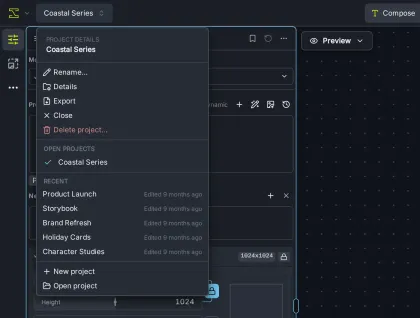
The switcher also carries commands for the active project: Rename…, Details, Export, Close and Delete project…. Details opens the Project widget, which shows the project’s name, when it was last saved and whether it is in sync with the server.
The shortcut works even while you are typing in a prompt box. You can rebind it in the hotkey settings, where it is called Open project switcher.
Closing a project
Section titled “Closing a project”Close removes a project from the open list without deleting anything. It stays in your library, ready to reopen from the Projects page or the switcher. Closing the last open project returns you to Home. A project that is still generating cannot be closed until its queued runs finish.
Where your images go
Section titled “Where your images go”Every project owns a private board, created with the project and named after it. In the gallery it appears near the top, after Uncategorized, and always shows the current project name.
New results go to whichever board is selected in the gallery, so you can send a batch somewhere else when you want to. To send them to one board while you browse others, choose Auto-add to this board from that board’s menu; see Choosing where new media goes. When a project is first created, imported or duplicated, its own board is selected. If you choose a date view instead of a specific board, results still go to the project board. After that, the project remembers your choice of destination.
The destination is fixed when you press Invoke. Switching to a different project or board while a job runs does not redirect its results.
Boards belonging to your other projects are hidden from the gallery to keep it focused. To see them, turn on Other projects’ boards in the gallery’s board filters. The setting is remembered separately for each project.
A project board is managed through its project: renaming the project renames the board, and the board has no rename, archive or delete commands of its own. Its menu offers Export project (.invk) instead.
See the gallery for more about boards.
Saving and syncing
Section titled “Saving and syncing”Changes save to the server automatically, about half a second after you stop making them. If the connection drops, your browser keeps the unsaved changes and Invoke retries until the save goes through. The Project widget and the workflow toolbar show the current state, for example Project saved to the server or Saving project….
Because projects live on the server, the same project can be open in two browser tabs or on two computers. If both change it before either has saved, Invoke shows a Project changed elsewhere banner and lets you decide:
- Save as new project keeps your version as a separate copy, so nothing is lost.
- Use server version discards this tab’s edits in favour of the saved version.
- Export local draft downloads your version as a file before you choose.
A similar banner appears if a project you have open is deleted from another tab or computer. Your work stays available until you choose what to do with it.
Managing your projects
Section titled “Managing your projects”The Projects page lists everything you have saved. Reach it from the Home page (View all projects), from the Projects section alongside Home, or through the Projects entry in the top-left app menu.
- Search projects… filters by name.
- Sort by orders the list by Last edited (the default), Date created or Name.
- Grid view and List view switch between cover cards and a compact list.
- Projects are grouped under Pinned, Open now, Today, Earlier this week, Earlier this month and Older. Searching or sorting by name shows a single list instead.
Each project’s cover is chosen automatically from its newest result, or from its top canvas layer when it has no results yet.
Right-click a project, or use its Actions button, for Open, Pin, Rename…, Duplicate, Export, Delete intermediates… and Delete…. Pinned projects stay at the top of the list. Your sort order, view and pins are remembered.
Renaming, duplicating and deleting
Section titled “Renaming, duplicating and deleting”Rename… changes the project name and the name of its board.
Duplicate creates a complete copy called “name copy”, including copies of every image and video on the project’s board. Use it to try a different direction without disturbing the original.
Delete… removes the project permanently. There is no trash to recover it from.
- The project’s canvas, workflows, layout and settings are deleted.
- Its board is deleted too, but the images and videos on it are kept: they move to Uncategorized in the gallery. Deleting a project never empties your gallery.
- A project that is still generating cannot be deleted until its runs finish.
If you only want to tidy the switcher, Close the project instead of deleting it.
Generation also leaves temporary files behind in each project. Delete intermediates… reclaims that space safely; see Intermediates.
Exporting and importing
Section titled “Exporting and importing”Export packages a project into a single .invk file named after it. The file contains the project itself, every image and video on its board, and any other media the project uses, such as reference images, so it opens complete on another installation. Temporary intermediates are left out.
Before exporting, Invoke asks whether to Include font files used by text layers. It is off by default. Leave it off unless you have permission to redistribute the fonts; recipients can install or replace missing fonts themselves.
If some media is no longer available, the export still completes and reports how many items it could not include. A project with changes that have not reached the server yet cannot be exported until it reconnects.
To bring a project in, click Import… on the Home or Projects page, or use Open project in the switcher, and choose a .invk file. Import always creates a new project, so importing the same file twice gives you two independent copies, and it never overwrites an existing project. The imported project opens straight away. Files from older versions of Invoke that saved canvas projects differently cannot be imported.
Export is also the simplest way to back up a project you care about, or to hand one to someone else. There is no other way to share a project, because projects belong to a single account.
Workflows in a project
Section titled “Workflows in a project”A project can hold several workflows. Each is saved as part of the project and changes automatically along with it; your workflow library changes only when you save a workflow to it on purpose.
In the Workflow Library dialog, This project lists the project’s own workflows, while Browse and Yours list bundled templates and your saved library. Opening a library workflow adds a copy to the current project. Fork into new project copies a workflow into a brand-new project of its own.
Making the most of projects
Section titled “Making the most of projects”- One project per piece of work. Create a project for each client job, series or experiment, rather than doing everything in one. Each keeps its own layout and board, so switching tasks means switching projects.
- Name projects as you create them. Names make the Projects page searchable and label the boards in your gallery.
- Pin what you’re actively working on. Pinned projects stay at the top of the Projects page no matter how many others you create.
- Duplicate before a big change. A duplicate is cheap insurance when you want to explore a different direction.
- Queue work, then switch. Start a long render or a batch, switch to another project with Ctrl+P, and keep working. The progress ring in the switcher shows when it is done, and the results wait on the original project’s board. To see only the active project’s jobs in the Queue widget, set Show jobs from to Active project in Settings.
- Close projects you’re not using. It keeps the switcher short and costs nothing: the project stays in your library.
- Export milestones. Exporting a
.invkfile gives you a self-contained snapshot to archive or share. - Clean up occasionally. Long-running projects accumulate temporary files; run Delete intermediates… from the project’s menu to reclaim disk space.
Things to know
Section titled “Things to know”- Projects belong to one account. With multiple users enabled, each person sees only their own projects, and there is no project sharing. Export and import a
.invkfile to pass a project to someone else. - Undo history is not saved with the project; it is cleared when you reload or close it.
- Invoke needs the server to open projects. If it cannot reach the server, a Projects are temporarily unavailable screen offers to retry and to export any unsaved work your browser is holding.
- Newer projects need a newer Invoke. A project saved by a newer version of Invoke shows Requires a newer Invoke and cannot be opened until you upgrade.
- Size limits. A project file can be up to 2 GB, with up to 20,000 files. Export reports a project that is too large to package.
- Clear saved data… under Data & workspace in Settings deletes all of your projects and settings at once, and cannot be undone.