
Subject
Start with the main thing you want to see: a character, object, scene, or action.
The prompt is your main way of telling a model what to create. This guide starts with writing good prompts, which is all most images need. It then covers the tools that save typing and add variety: prompt templates, dynamic prompts and wildcards. Advanced Prompt Syntax covers the syntax for fine control.
For the tools that write or rewrite a prompt for you, Expand prompt and Image to prompt, and for inserting trigger phrases, see Prompt Tools.
Prompting works best when you describe the image clearly, then refine only the parts that matter. Most good prompts cover a few of these:
Subject
Start with the main thing you want to see: a character, object, scene, or action.
Style or Medium
Add the visual language: photograph, watercolor, oil painting, 3D render, anime illustration, and so on.
Lighting and Composition
Describe the camera angle, framing, lighting, environment, color palette, or mood that will shape the image.
Detail and Finish
Add a few high-value details such as fabric texture, shallow depth of field, natural skin texture, or painterly brushwork.
A simple pattern that works well is:
subject, style or medium, lighting or composition, a few important details
Not every prompt needs every category. Start simple, then add detail only when the model needs more direction.
The positive prompt describes what you want the model to create. Put the most important idea early and keep the wording concrete.
The negative prompt lists what you do not want. Use it to remove recurring problems or unwanted traits, and keep it short and targeted rather than pasting a giant list into every generation. Good negative prompts name specific failure modes: blurry, distorted hands, low detail, extra limbs.
Not every model uses a negative prompt. See Negative prompt in the Generate panel guide for which models do.
Start with the core image. Write the clearest version of the image you want before adding stylistic extras.
Add style and composition. Once the subject is right, add medium, lens, lighting, mood, background, or framing details.
Test with a fixed seed. When you are learning what a prompt change does, set the seed mode to Fixed so you can compare results directly.
Change one thing at a time. If you add five new terms at once, you will not know which one helped.
Escalate only when needed. If the result is close but one element is too weak or too strong, use attention weighting. If you want lots of variations, use dynamic prompts.
Here is the same idea refined in stages:
portrait of a woman
portrait of a woman, studio photograph, soft key light
portrait of a woman, studio photograph, soft key light, 85mm lens, shallow depth of field, natural skin textureThe same prompt can behave very differently across models.
Photographic portrait
editorial portrait of a woman in a charcoal coat, studio photograph, soft key light, subtle rim light, 85mm lens, shallow depth of field, natural skin textureNegative: blurry, low detail, waxy skin, extra fingers
Environment concept art
ancient stone temple built into a cliffside, fantasy concept art, misty sunrise, towering scale, moss-covered stairs, cinematic atmosphereNegative: flat lighting, low contrast, muddy details
Product-style render
sleek ceramic teapot on a matte stone surface, product photography, clean studio lighting, soft shadow, high detail, minimal backgroundNegative: cluttered background, distortion, duplicate objects
Stylized illustration
fox courier crossing a rainy city street, storybook illustration, bold shapes, glowing shop signs, reflective pavement, warm and cool color contrastNegative: photorealistic, dull colors, low detail
A prompt template is a reusable piece of prompt text, such as a photographic or artistic style, that wraps whatever you type. Apply Photography (General) once, and every prompt you write is sent as a photograph without you retyping the style words. Templates are available in the Generate panel.
Click Templates in the positive prompt’s toolbar. The popover lists the templates available to you in three groups:
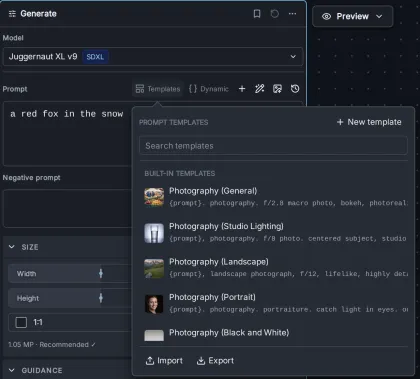
Each row shows the template’s preview image, its name and its prompt text. Type in Search templates to filter by name or prompt text, and click a template to apply it.
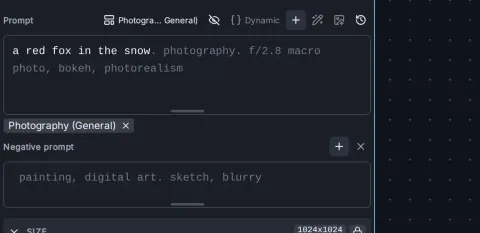
While a template is applied, the toolbar button shows its name and a tag with the name appears under the positive prompt. To stop using the template, click the tag’s close button (Stop using this template).
Applying a template never changes the text in your prompt box. The template is combined with your prompt when you press Invoke, so you can switch templates, or remove one, without losing what you wrote.
A template’s text usually contains the placeholder {prompt}, which marks where your own prompt goes. With the template
{prompt}. photography. f/2.8 macro photo, bokeh, photorealismthe prompt a red fox in the snow is sent as
a red fox in the snow. photography. f/2.8 macro photo, bokeh, photorealism{prompt} is replaced. Any further copies stay in the text as written.{prompt} is added to the end of your prompt, after a space.While a template is applied, an eye button in the prompt toolbar (Show the merged prompt) shows the prompt exactly as it will be sent, with the template’s words distinguished from yours. The prompt boxes are read-only in this view. Click the text, or the button again (Back to editing your prompt), to return to editing.
InvokeAI ships with 18 templates covering common styles:
Built-in templates can be applied but not edited. To adapt one, create your own template from its text.
Click New template at the top of the popover. The editor has four fields:
{prompt} button next to the field inserts the placeholder.{prompt}.Click Save to store the template. To change or remove one of your templates later, use the pencil and trash buttons on its row. Deleting a template cannot be undone. If you delete, or someone else deletes, a template you are currently using, it keeps shaping your prompt until you stop using it.
To reuse the prompt of an image you like, right-click it in the Gallery or Preview and choose Use as Prompt Template. The New template editor opens with the image’s positive and negative prompts filled in. Replace the part that describes the subject with {prompt}, name the template and save it.
The popover’s Import and Export buttons move templates in and out as files. In a multi-user installation they are available to administrators only.
.csv or .json file. A CSV file needs the columns name, prompt and negative_prompt; a JSON file is a list of objects with the same keys. Every template needs a name. Imported templates become your own templates.prompt_templates.csv, with the same three columns. Built-in templates are not included.Preview images are not part of either file.
On a multi-user installation, templates you create are private to your account. Templates that other users have shared appear under Shared templates, where you can apply them but not change them.
An image’s metadata records the prompt that was actually used, with the template already combined into it. It does not record which template was applied. When you recall the prompts from an image, you get that combined text, and any template you currently have applied is removed so that the style is not applied twice.
Dynamic prompts expand a single prompt into many variations. Write the parts you want to vary as a list of alternatives, and one press of Invoke generates an image for each variation. They are useful for brainstorming, exploring styles and subjects, and testing a model without rewriting the same prompt by hand.
Dynamic prompts work in the Generate panel and on the Canvas. Only the positive prompt is expanded; the negative prompt is used as written for every variation.
Put alternatives inside braces and separate them with |:
a {red|green|blue} balloonThis expands into three prompts: a red balloon, a green balloon and a blue balloon. Several groups in one prompt multiply:
a {red|green} {balloon|kite}gives a red balloon, a red kite, a green balloon and a green kite. Groups can also be nested: a {cat|{small|large} dog} gives a cat, a small dog and a large dog. More syntax is described under Advanced dynamic prompt syntax.
Click Dynamic in the prompt toolbar to open the Dynamic Prompts popover. When the prompt contains dynamic syntax, the button shows how many prompts it expands into.
The Preview tab lists the expanded prompts, numbered and highlighted, and shows the total as prompts × iterations → generations. The Invoke button’s tooltip shows the same count. Only the first 200 prompts are listed; the rest are summarized as and N more.
Click a prompt in the list (Use this prompt) to replace your prompt with that one variation, for example to refine it on its own. If a template is applied, it is folded into the chosen prompt and the template itself is removed, since its words are now part of your prompt.
If the prompt cannot be expanded, for example because a brace is not closed or a wildcard has no values, the Preview tab shows the error and Invoke is blocked until you fix it.
Write the prompt with the parts you want to vary in braces.
Open Dynamic and check the Preview list. Make sure the combinations make sense before you generate a large batch.
Set the mode and the number of prompts (see below).
Press Invoke. Each expanded prompt is generated once per iteration, so 6 prompts with Iterations set to 2 give 12 images.
The Mode menu in the Preview tab sets how prompts are chosen:
All combinations
Lists every combination in order, up to Max prompts. This is the default, and the best choice when you want to compare every option.
Random sample
Draws Number of prompts variations at random, honoring any weights. The same prompt can be drawn more than once. Click Shuffle the sample to draw a new sample.
The number of prompts can be set from 1 to 10,000 and is 100 by default. Combinations grow quickly, so this limit keeps an innocent-looking prompt from queuing thousands of images: a {red|green|blue} balloon in {morning mist|golden hour|rain} already has nine combinations.
By default, every variation within one iteration shares the same seed. Because only the prompt changes between the images, this makes it easy to see what each option does.
Turn on New seed for every image to give each image its own seed instead, for the widest variety. When the panel’s Seed mode is Fixed, every image uses the same seed and this switch is unavailable.
A wildcard is a named list of values that you can use in any prompt. Write the name between double underscores, and it behaves like a dynamic prompt group of all its values:
a __colors__ balloonWith a colors wildcard containing red, green and blue, this is the same as a {red|green|blue} balloon. Wildcards save retyping long lists and keep them consistent between prompts.
Values can contain dynamic syntax, including other wildcards. Names can be nested with /, such as animals/dogs, and __animals/*__ combines every wildcard under animals.
Wildcards are managed on the Wildcards tab of the Dynamic popover.
# starts a comment.__ in the prompt, or use the + prompt trigger menu.Wildcards belong to your account. On a multi-user installation, each user has their own set.
Import reads wildcards from files you already have, such as collections downloaded for other tools:
.txt file (or a file without an extension) becomes one wildcard named after the file, with one value per line.animals/dogs.txt becomes animals/dogs..yaml, .yml or .json file can hold many wildcards. Nested keys become the name, joined with /, and each list becomes a wildcard’s values.If some wildcards already exist in your library, or cannot be imported, the Import wildcards dialog lists them. For each existing name you can Skip it, Replace it, or Keep both, which imports the new one under a numbered name.
Export downloads all your wildcards as wildcards.yaml (As YAML) or wildcards.json (As JSON), in the same nested format.
For finer control, Advanced Prompt Syntax covers attention weighting — making parts of a prompt count for more or less, and blending prompts, on SD 1.5, SD 2.x and SDXL — and the advanced dynamic prompt syntax for choosing several options, weighting options, variables and comments.