
Image Map Indexing and Search
Image Map
Section titled “Image Map”The optional Image Map feature dynamically creates a scatterplot of your generated and uploaded images and videos. Once its model is installed, Image Map automatically indexes every image or video in your gallery.
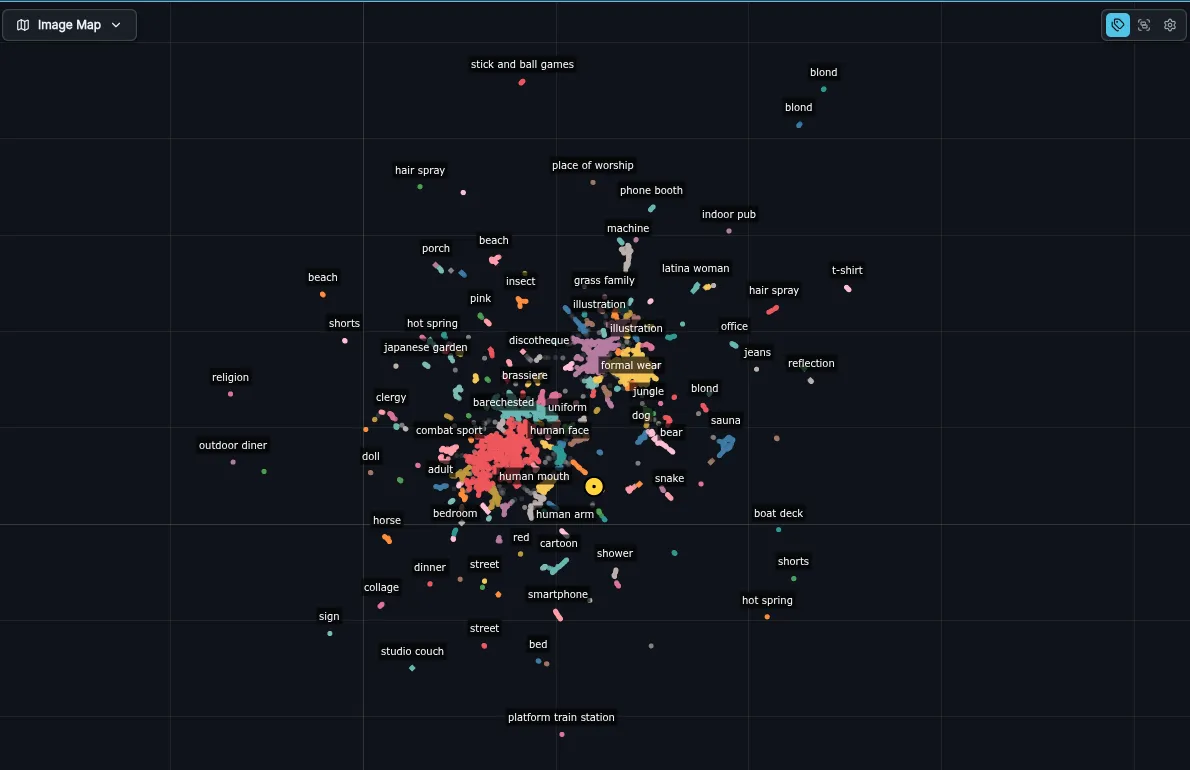
Images and videos that are similar to each other are grouped together in colored clusters and labeled using an autotagging system. When the Image Map is activated you also get the benefit of semantic search in the image gallery. This lets you search your galleries by image content (i.e. find “sunset on the beach” even for images that weren’t prompted with those exact words). You can also perform image similarity searches against your own, or third party images.
Activating the Image Map
Section titled “Activating the Image Map”To use the Image Map you will need to install the image encoder model
DFN2B-CLIP-ViT-L-14-39B from the starter models section of the Model
Manager. Once installed, you will need to restart the backend in order
to initiate the indexing process. If you have a large image
collection, initial indexing may take a while — expect a gallery of
20,000 images to take about 15 minutes to index. After this, the index
is updated incrementally in the background.
Inactivating the Image Map
Section titled “Inactivating the Image Map”If you wish to turn off Image Map indexing and hide its panel
entirely, add the line image_index_enabled: false to
invokeai.yaml.
Image Map Navigation
Section titled “Image Map Navigation”You can explore the map by using the mouse, scrollwheel or touchscreen gestures to pan and zoom. Hovering over a spot will display a thumbnail of the image it corresponds to, along with information on which cluster the image belongs to, the tags assigned to the cluster, and the tags assigned to the image itself.
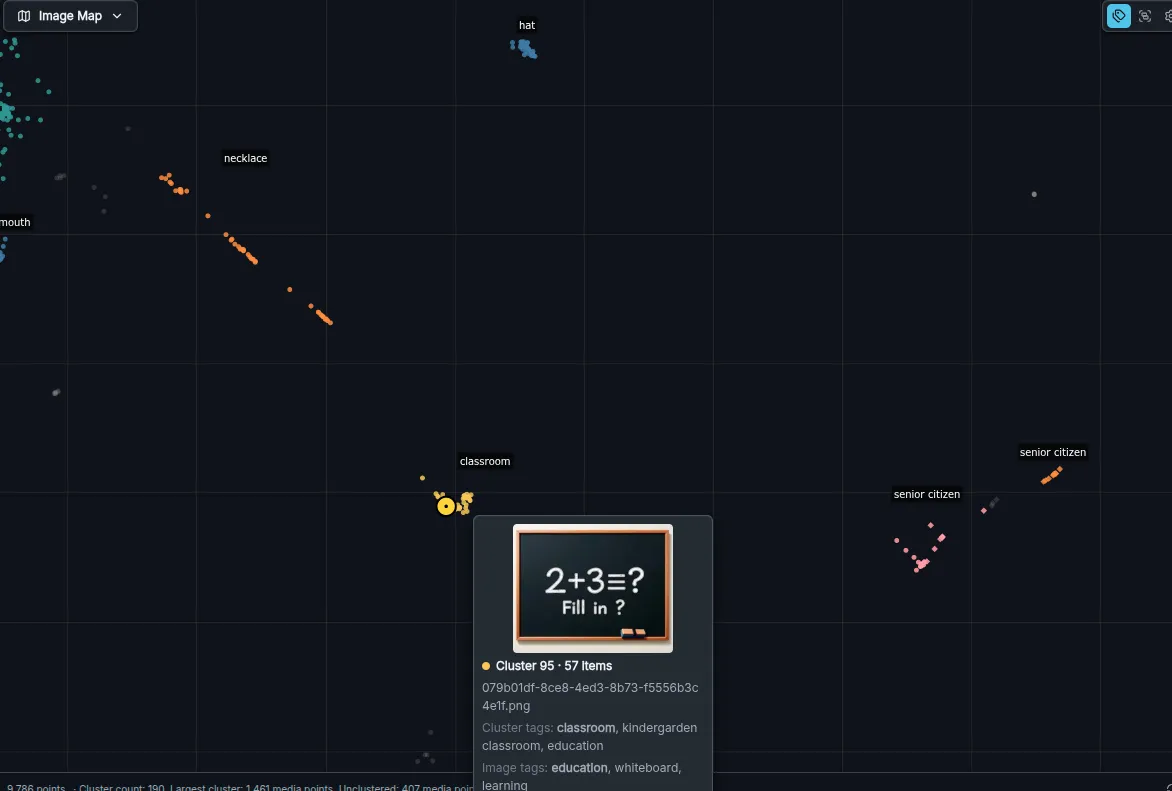
When you click on a spot, one of two things can happen depending on
the Image Map mode you are in. In one mode clicking on a spot loads
its image into the preview, and navigates to where the image lives in
the gallery. In the other mode, clicking on a spot will load its
entire cluster into the gallery, and load the clicked image into the
preview. You can change the mode by selecting the “click” icon in the
upper right of the image map panel: 
If you select an image in the gallery, a yellow target will appear on the Image Map to show its location, and the target will move around as you navigate the gallery.
Activating/inactivating tags
Section titled “Activating/inactivating tags”You can show and hide the tags by clicking on the “label” icon in the upper right-hand of the panel.
Floating the Image Map Window
Section titled “Floating the Image Map Window”When you open the Image Map in the right rail, a floating window icon will appear at the far right of its title bar. Click on this to pop the window out. You can then move it around the screen and resize the floating window by dragging its bottom right corner.
Semantic search
Section titled “Semantic search”If Image Map indexing is active, then an AI search mode is added to the gallery. Press the sparkle button at the right end of the gallery’s search box and describe what you are looking for; any text already in the box is used straight away. This will display the images and video stills whose content is most closely related to your description. See Searching by content for details.
You can also search by image similarity. Drag and drop an image (from the gallery, preview, or another browser tab) onto the search box. All similar images will be shown in the gallery.
To exit search mode, click the “X” to the right of the search box.